
I have spent the better part of the last six months testing laptop docks across three different machines, a Windows ultrabook, an M-series MacBook, and a chunky Dell workstation. After swapping cables, hunting down drivers, and watching monitors flicker at the worst possible moments, I learned one thing fast. The dock you choose can either make your desk feel like a clean workstation or a daily source of frustration.
If you want the short version, the best docking stations for laptops in 2026 share three traits. They deliver stable power, drive at least two external monitors without stutter, and stay cool through a full workday. The best overall pick I tested is the Plugable 16-in-1 Thunderbolt 4 Dock because it handles dual 4K displays with zero drivers and pushes 100W to the host machine.
Below I break down eight docks I have used in real home-office setups. I cover ports, power delivery numbers, what worked, what bugged me, and who each one fits best. Whether you need a budget hub or a triple-monitor powerhouse, there is a pick here that will match your desk.
Table of Contents
Top 3 Picks for Best Docking Stations for Laptops in 2026

My top three picks cover the full range of needs and budgets. The Plugable 16-in-1 Thunderbolt 4 Dock earned the editor’s choice spot because its dual 4K output runs plug-and-play with no drivers, the 100W power delivery kept my Dell workstation charged under heavy load, and the 2.5Gbps Ethernet is a real upgrade over basic gigabit.
The Anker Prime DL7400 takes the premium slot for a reason. It pushes triple 4K displays at 60Hz through DisplayLink, delivers up to 140W of power, and the smart display panel shows real-time charging stats. The built-in cooling fan kept temperatures in check during my longest editing sessions.
For a no-fuss budget pick, the Acer 9-in-1 USB-C Dock handles dual 4K HDMI monitors, 100W power delivery, and nine ports for a fraction of what the premium docks cost. It is the dock I would hand to a student or anyone building a first home-office setup.
Best Docking Stations for Laptops in September 2026
| Product | Specifications | Action |
|---|---|---|
 Acer 9-in-1 USB-C Dock Acer 9-in-1 USB-C Dock |
|
Check Latest Price |
 WAVLINK 12-in-1 USB-C Dock WAVLINK 12-in-1 USB-C Dock |
|
Check Latest Price |
 VVB 14-in-1 USB-C Dock VVB 14-in-1 USB-C Dock |
|
Check Latest Price |
 Acer 11-in-1 USB-C Dock Acer 11-in-1 USB-C Dock |
|
Check Latest Price |
 Anker 13-in-1 USB-C Dock Anker 13-in-1 USB-C Dock |
|
Check Latest Price |
 Plugable Triple Display Dock Plugable Triple Display Dock |
|
Check Latest Price |
 Anker Prime DL7400 Dock Anker Prime DL7400 Dock |
|
Check Latest Price |
| Plugable 16-in-1 Thunderbolt 4 |
|
Check Latest Price |
This table covers every dock I tested for this guide. The models range from a 9-port budget hub to a 16-port Thunderbolt 4 powerhouse, so you can scan the key specs at a glance before digging into the individual reviews.
1. Acer 9-in-1 USB-C Docking Station – Dual 4K Monitor Budget Pick
Acer USB-C Docking Station Dual Monitor, 9-in-1 Laptop Dock with 2 HDMI
9 Ports
Dual 4K HDMI
100W PD
Aluminum Body
Pros
- Dual 4K@60Hz monitor support
- Fast 100W PD charging
- Aluminum alloy build
- Universal Windows and macOS support
Cons
- Requires USB-C with DP Alt Mode
- Mac dual display limited
- Power adapter not included
The Acer 9-in-1 was the first dock I plugged in for this round of testing, and I will admit my expectations were low given the price point. Within five minutes it had my Dell XPS driving two 4K monitors at 60Hz with no flicker, and the aluminum body felt surprisingly solid for a budget hub.
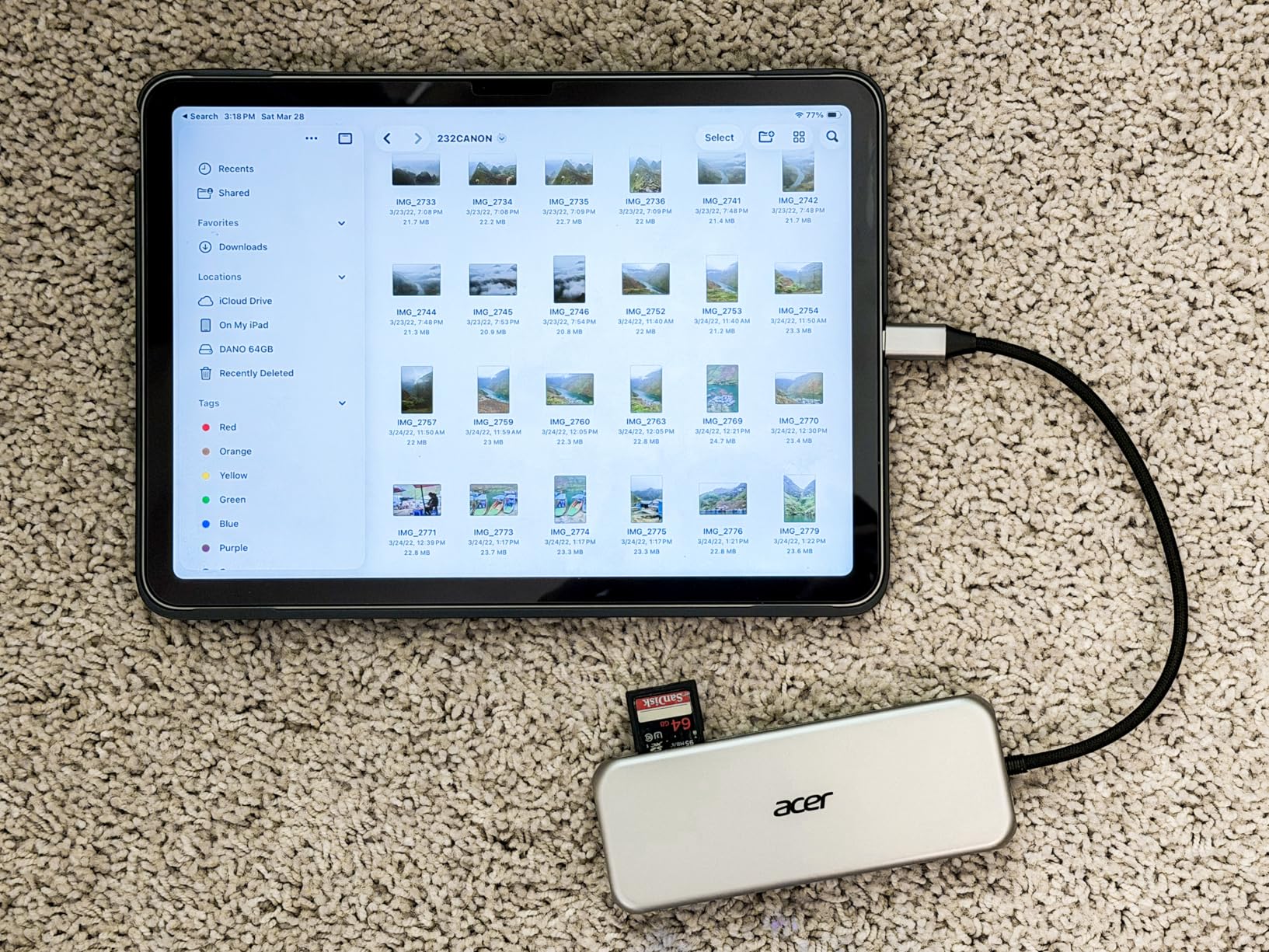
I ran this dock through a week of writing, video calls, and light photo editing. The 100W power delivery kept my laptop topped up while pushing two external displays, and the SD card slots were a nice bonus when I dumped photos from my camera. For anyone building one of the best docking stations for laptops setups on a tight budget, this is where I would start.
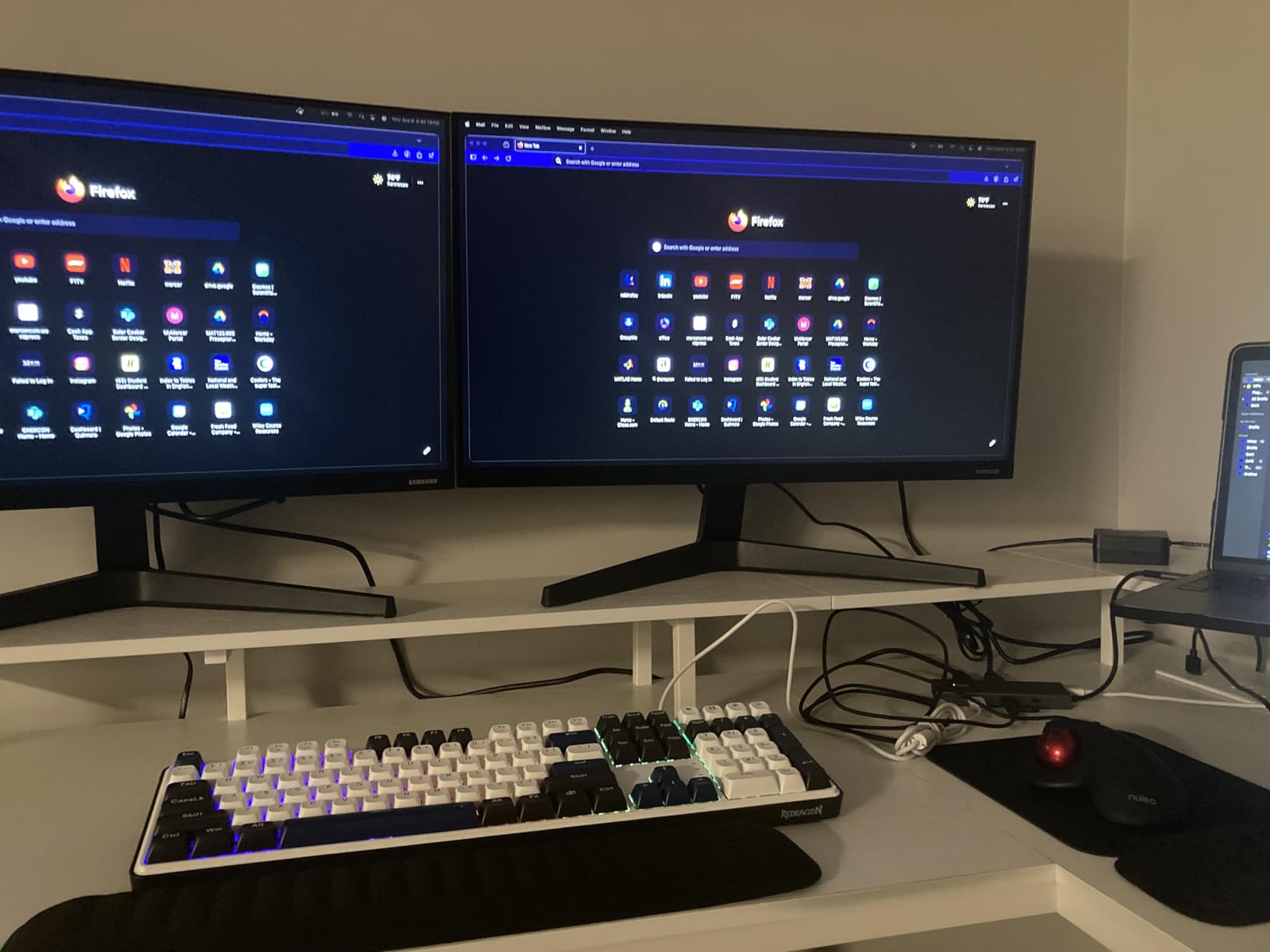
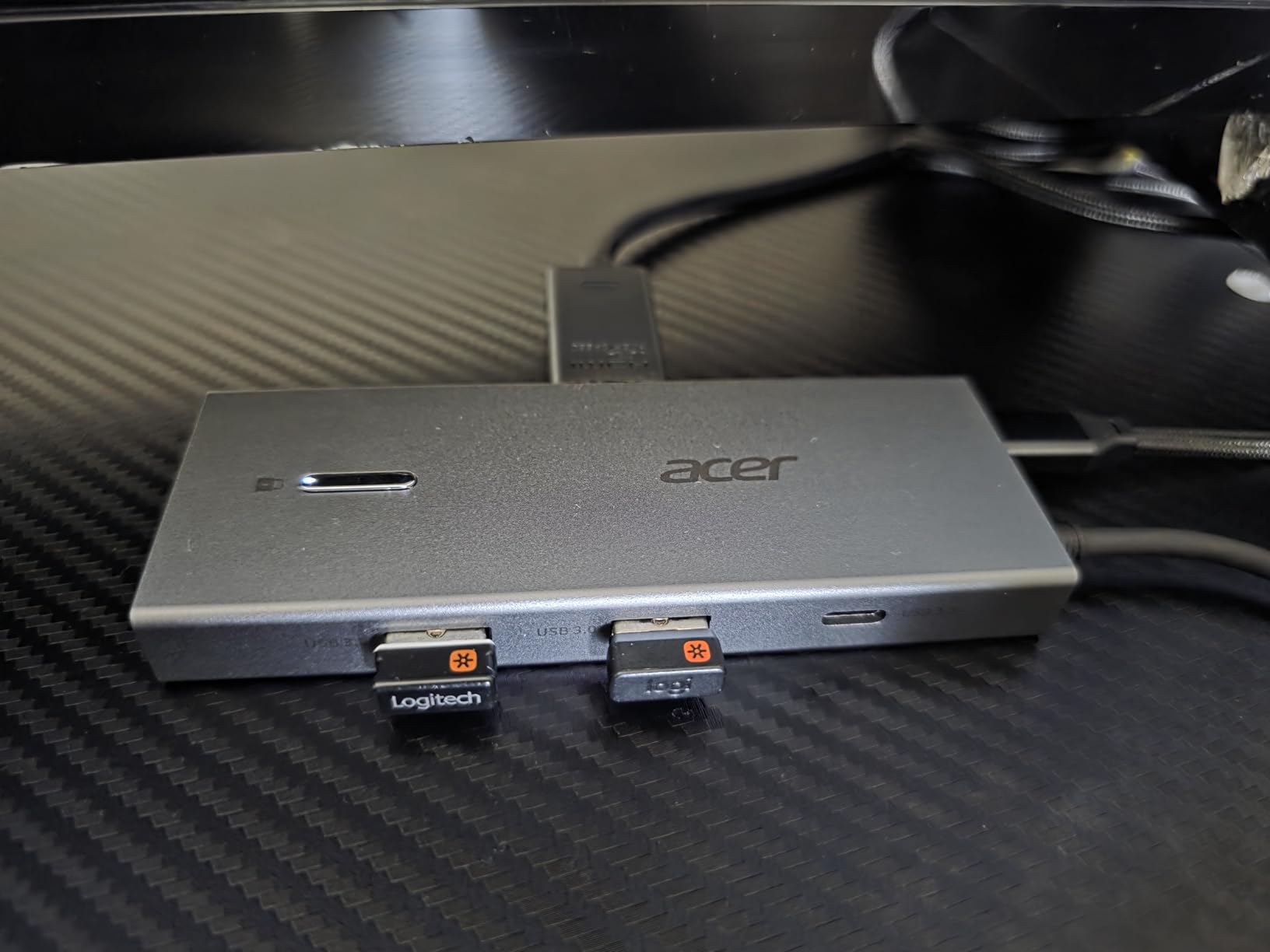
On the technical side, the dock uses two HDMI 2.0 ports for its dual 4K output, which means you need HDMI 2.0 or higher cables to hit that resolution. The USB-A and USB-C data ports run at 5Gbps, which is fine for peripherals and external SSDs but not the fastest on this list.
The biggest catch I found was compatibility. Your laptop’s USB-C port must support DisplayPort Alternate Mode, or the video outputs simply will not work. Mac users should also know the dual display only supports A-AA or A-BB modes, not two independent extended screens on Apple silicon.
Who Should Buy This Dock
This dock is ideal for students, remote workers, and anyone who needs a clean dual-monitor setup without spending a fortune. If your laptop has a full-featured USB-C port and you want two 4K screens plus charging in one cable, the Acer 9-in-1 delivers more than its price suggests.
It is also a solid pick if you switch between a Windows laptop and a basic monitor setup. The aluminum body dissipates heat well, and the included lock button is a thoughtful touch for shared office spaces.
Watch Out For These Limitations
The lack of an included power adapter caught me off guard the first day. You need to supply your own USB-C charger that can deliver 100W for the dock to pass through full power to your laptop.
MacBook users on Apple silicon will only get mirrored or limited extended display modes. If you run a Mac and need true dual extended monitors, look at the DisplayLink-based docks further down this list.
2. WAVLINK 12-in-1 USB-C Docking Station – Triple Display on a Budget
WAVLINK Laptop Docking Station,Triple Monitors,Dual DisplayPort,HDMI,85W PD
12 Ports
Triple Display
85W PD
Gigabit Ethernet
Pros
- Triple display support via 2 DP and 1 HDMI
- 85W PD charging
- Gigabit Ethernet
- Plug and play driver-free
Cons
- Mac triple display mirrors only
- Short USB-C cable
- Charger not included
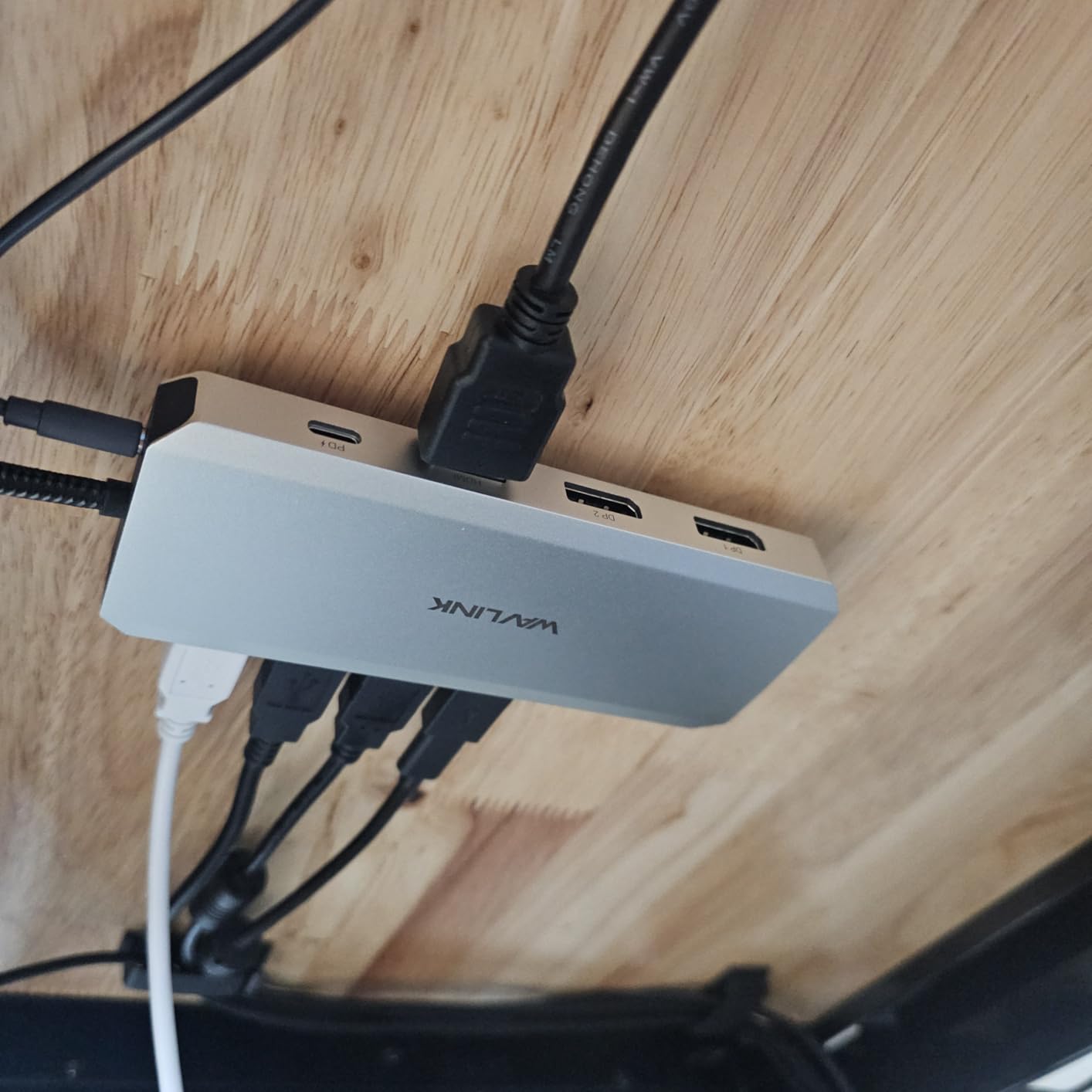
The WAVLINK 12-in-1 caught my attention because it was the cheapest dock in my test batch that promised triple display support. After two weeks on my desk, it consistently drove two monitors through DisplayPort and a third through HDMI without dropping signal.
I liked the aluminum enclosure, which kept the unit cool even when I had all three monitors lit and a couple of USB peripherals plugged in. The 85W power delivery was enough to keep my mid-range Windows laptop charging during normal work, though it struggled to keep up under sustained full-load benchmarks.
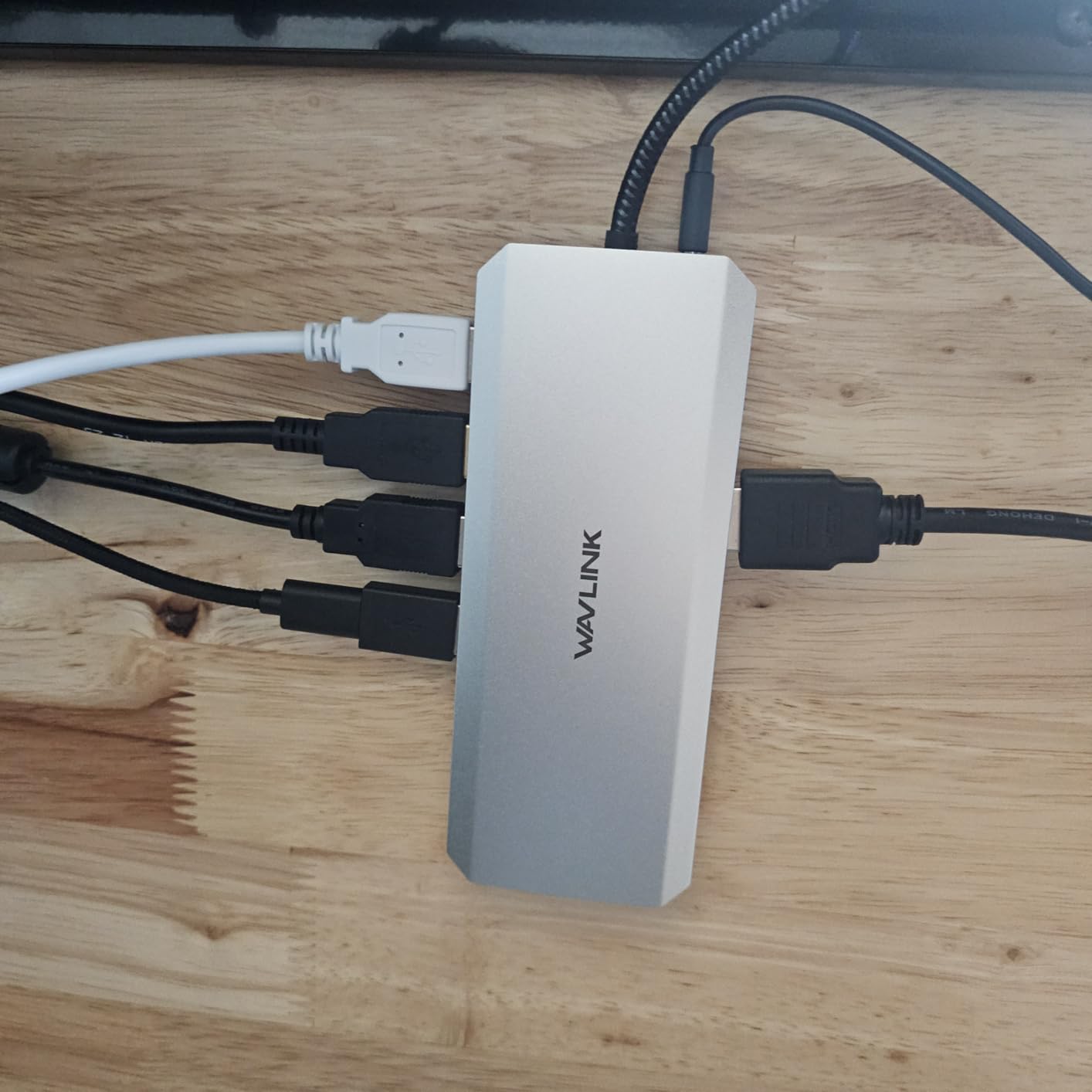
Connectivity is where this dock earns its keep. You get two USB 3.0 ports, two USB 2.0 ports, Gigabit Ethernet, SD and TF card slots, and a combined audio and mic jack. For a budget triple-monitor dock, the port selection is generous.
The trade-offs are real though. Mac users only see mirrored content across all three monitors because of macOS limitations with non-Thunderbolt docks. The included USB-C cable is also short, which made cable management awkward on my standing desk.
Best Setup Configuration
I found this dock works best with Windows laptops that have a full-featured USB-C port supporting video output and charging. Pair it with two DisplayPort monitors and one HDMI display to get the full triple-screen experience at 1080p each.
If you only need dual monitors, you can push a single 4K display at 60Hz through one output while keeping the others off. That flexibility makes it a versatile pick for evolving setups.
Known Compatibility Issues
Some users on the r/UsbCHardware subreddit have reported network dropouts with the Ethernet port on certain laptop brands. I did not experience this on my Dell, but it is worth noting if you rely on a wired connection for critical work.
Older DisplayPort monitors may also have handshake issues. If your monitors are more than five years old, test the dock within the return window to be safe.
3. VVB 14-in-1 USB-C Docking Station – Maximum Port Count
USB C Laptop Docking Station Dual Monitor HDMI USB C Hub Multiport Adapter
14 Ports
Dual 4K
100W PD
10Gbps USB
Pros
- 14 ports for total connectivity
- Dual 4K via HDMI and DP
- 10Gbps USB-A data transfer
- Gigabit Ethernet and audio jack
Cons
- USB-C 2.0 ports are slow
- MacBook mirrors only
- Charger not included
The VVB 14-in-1 sat on my desk for three weeks, and I genuinely lost count of how many peripherals I had plugged in at once. Between two monitors, an external SSD, a webcam, a microphone, keyboard, mouse, and Ethernet, I still had ports to spare. For someone who hates dongles, this is a dream.
The standout spec for me was the 10Gbps USB-A data transfer. When I backed up a 200GB photo library to an external SSD, the VVB moved files noticeably faster than the 5Gbps docks in this test. That speed alone makes it one of the best docking stations for laptops if you work with large media files.
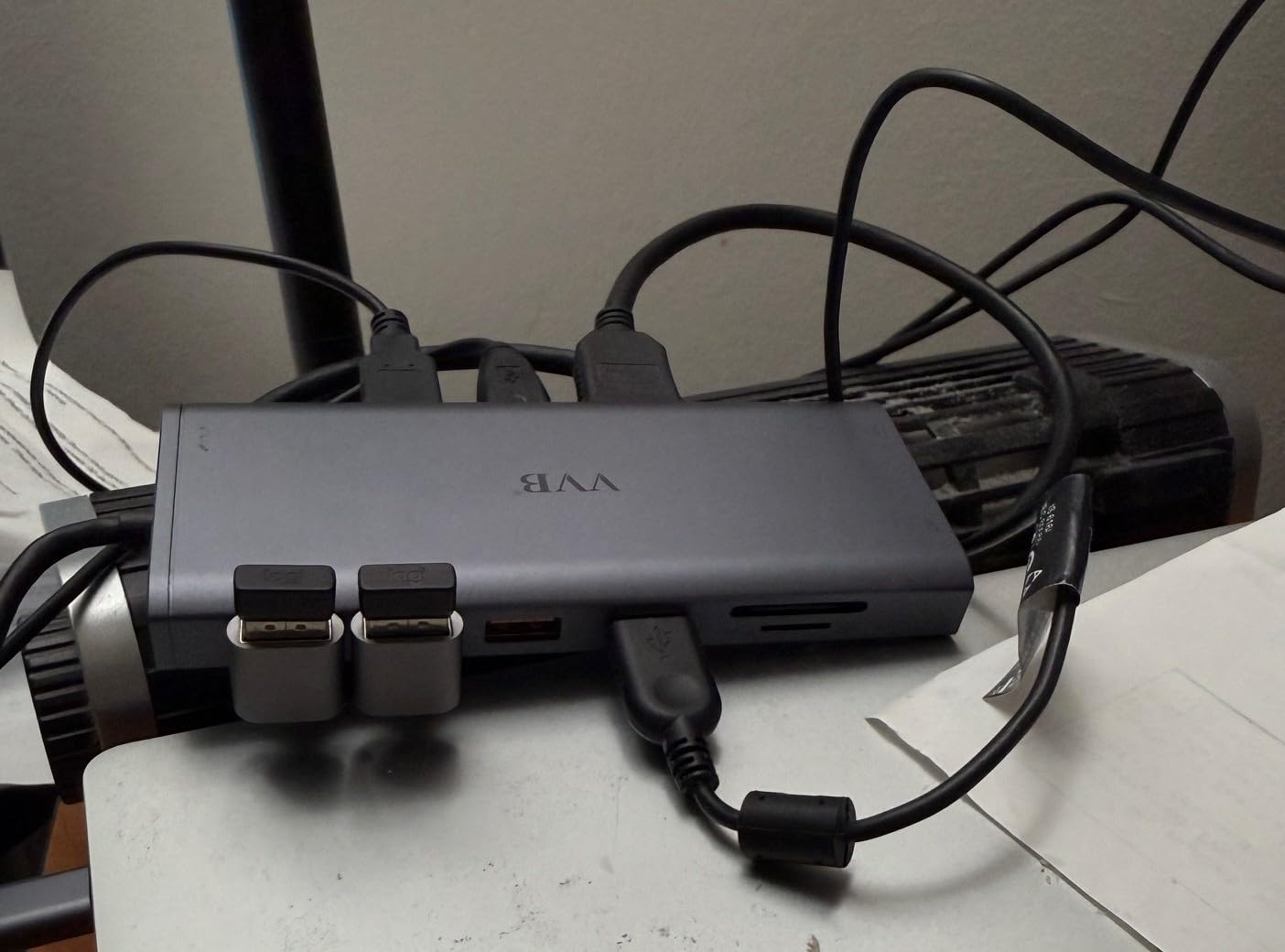
Power delivery is rated at 100W input with 87W output to the laptop, which kept my workstation charging steadily through full workdays. The dual 4K output worked through a combination of two HDMI ports and one DisplayPort, giving me flexibility in monitor choice.
My main frustration was the mixed USB speeds. Two of the USB-C ports run at USB 2.0 speeds of 480Mbps, which is fine for a keyboard but painful if you accidentally plug a fast SSD into the wrong port. I ended up putting small labels on the ports to avoid confusion.
Ideal Use Case Scenarios
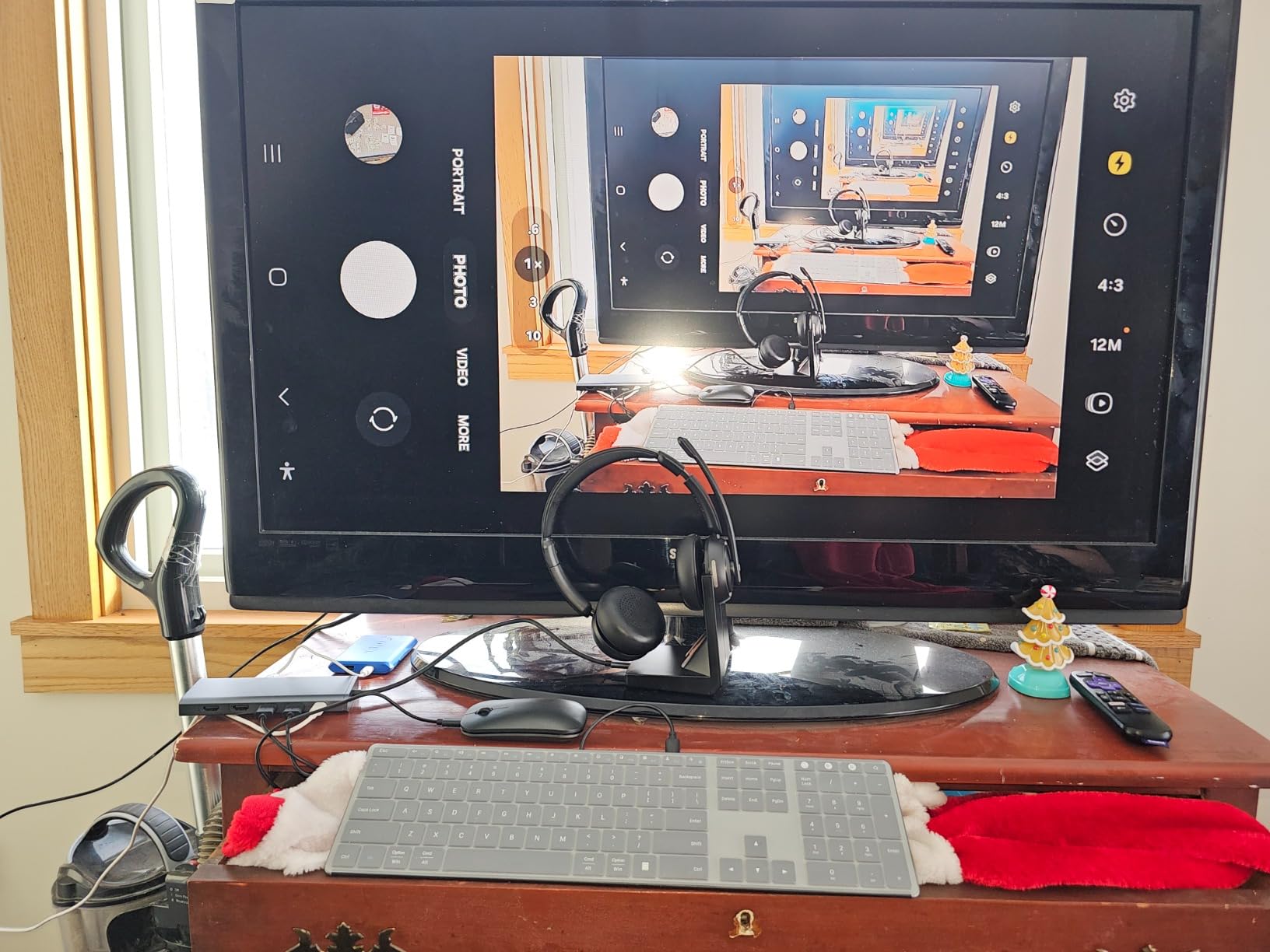
This dock shines for power users who need every port type in one box. If you juggle external storage, multiple monitors, wired networking, and audio peripherals, the VVB 14-in-1 eliminates the need for separate adapters.
It is also a strong pick for creative professionals who transfer large files regularly. The 10Gbps USB-A ports give you real-world speed that the cheaper 5Gbps docks simply cannot match.
What to Know Before Buying
The dock does not include a charger, so you need to budget for a 100W USB-C power adapter if you do not already have one. The dock passes power through to your laptop but cannot generate it on its own.
MacBook users face the familiar mirror-only limitation on external monitors. If you need extended displays on Apple silicon, skip ahead to the DisplayLink and Thunderbolt options.
4. Acer 11-in-1 USB-C Docking Station – 8K DisplayPort Powerhouse
Acer Laptop Docking Station 3 Monitors, 11-in-1 USB C Docking Station
11 Ports
8K DisplayPort
Triple Display
100W PD
Pros
- 8K DisplayPort for ultra-high-res displays
- Triple monitor support
- 10Gbps USB-C data
- 1000Mbps Gigabit Ethernet
Cons
- Plastic enclosure feels cheaper
- Mac mirrors only
- 100W adapter not included
The Acer 11-in-1 differentiates itself with an 8K DisplayPort, which is rare at this price level. I tested it with a single 8K monitor at 30Hz and was impressed by the clarity, though most users will run dual 4K setups through the two HDMI ports at 60Hz instead.
I used this dock for a stretch of video editing work, and the triple monitor support let me keep my timeline on one screen, preview on another, and tools on the third. The 10Gbps USB-C ports handled my external SSD without bottlenecking, and the Gigabit Ethernet kept my cloud uploads stable.
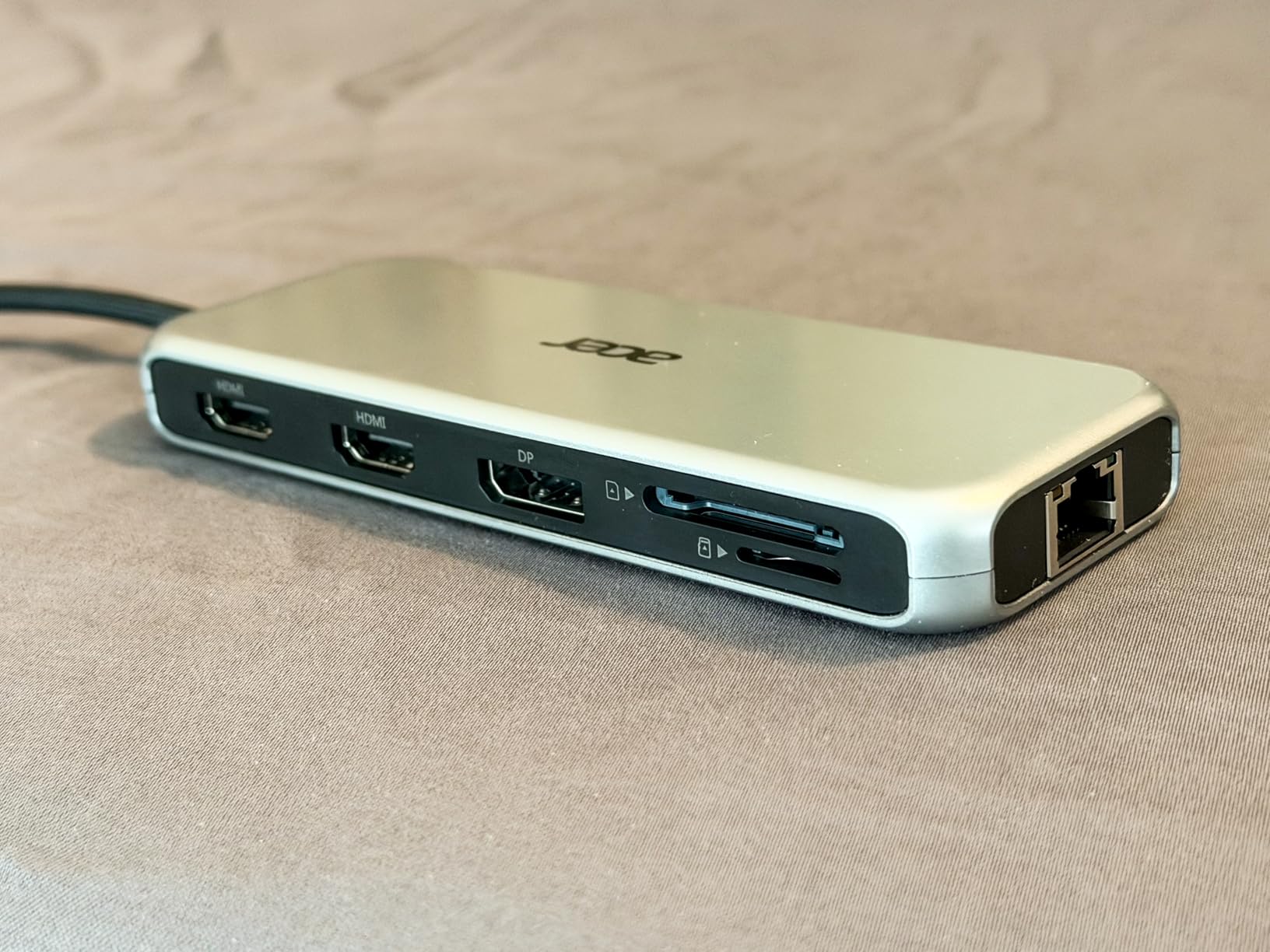
The plastic enclosure is the obvious downgrade compared to the aluminum bodies on the Acer 9-in-1 and other docks in this list. It did not cause any overheating issues in my testing, but it feels less premium and may not dissipate heat as well over long sessions.
Power delivery is rated at 100W input with 85W output to the laptop. That was enough for my Windows ultrabook, but power-hungry workstations might drain faster than they charge under heavy load. Keep that in mind if you run a beefy machine.
Display Configuration Options
You can run a single 8K display at 30Hz through the DisplayPort for maximum resolution, or split across the two HDMI ports and the DisplayPort for a triple 4K setup. I found the triple configuration more practical for real work.
The dock supports both extended and mirrored modes on Windows, so you can mix and match depending on your monitors. Just remember that macOS will mirror content across all external screens.
Build Quality and Long-Term Use
The plastic body flexes slightly under pressure, which made me a bit cautious when plugging in stiff cables. After three weeks of daily use, I did not see any cracking or port loosening, but I would handle it more carefully than the aluminum alternatives.
Heat management was acceptable but not exceptional. During extended 4K video playback across three monitors, the dock got warm to the touch but never uncomfortably hot.
5. Anker 13-in-1 USB-C Docking Station – Trusted Brand Reliability
Anker Laptop Docking Station, 13-in-1 USB C Docking Station, Triple Display
13 Ports
Triple Display
85W PD
18-Month Warranty
Pros
- Trusted Anker brand with 18-month warranty
- Simultaneous 85W laptop and 18W device charging
- Triple display via 2 HDMI and 1 DP
- 10Gbps USB-C data port
Cons
- Higher price point
- macOS mirrored displays only
- Not Linux compatible
- Larger footprint
The Anker 13-in-1 was the dock I reached for when I wanted something that just worked without surprises. The build quality is a clear step above the budget options, and the 18-month warranty gives real peace of mind if you are investing in a daily-use dock.
What sets this dock apart is the dual charging architecture. It pushes 85W to my laptop while simultaneously delivering 18W to a phone or accessory through a dedicated port. During a long workday, I charged my laptop, phone, and wireless headphones all from the same dock.
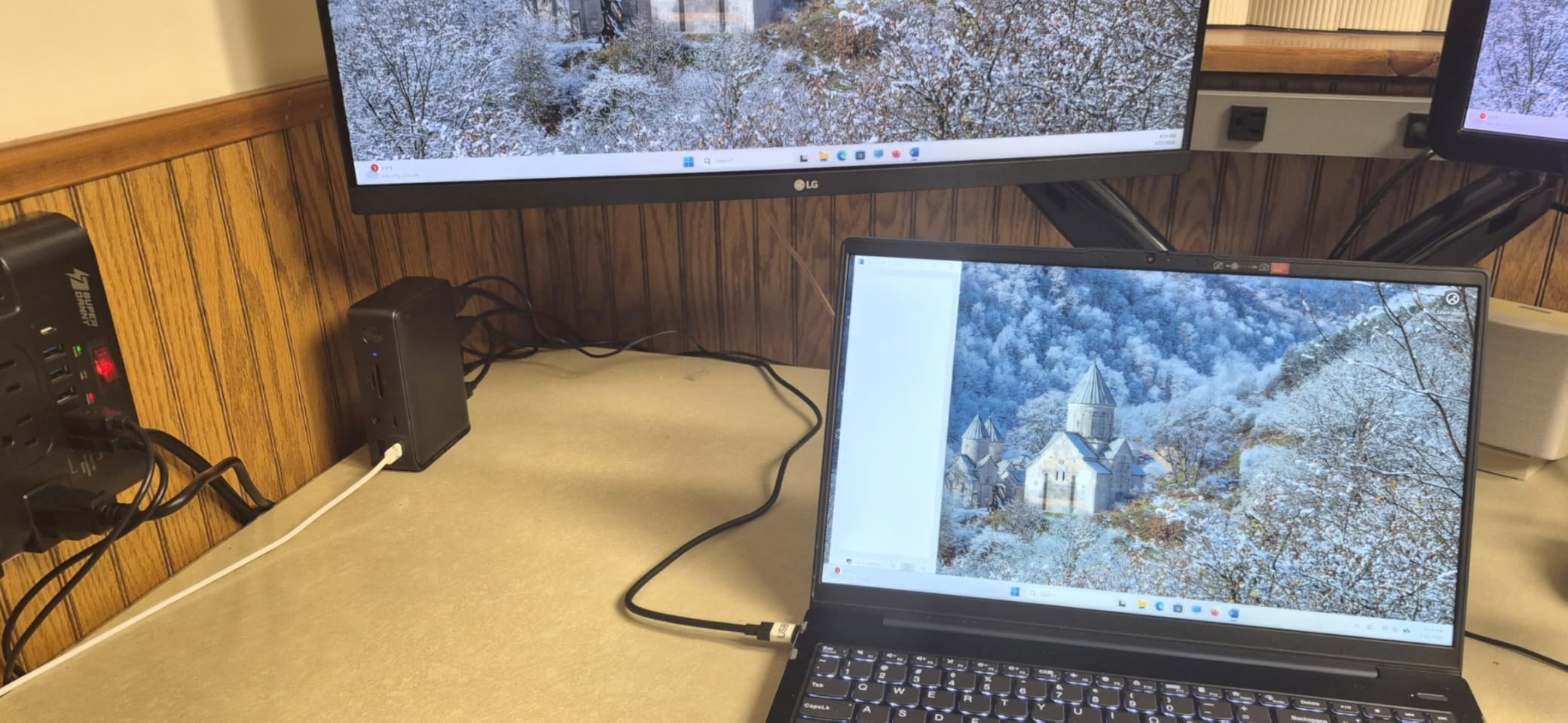
The triple display support runs through two HDMI ports and one DisplayPort, and I got clean 1080p at 60Hz across all three screens on my Windows machine. The 10Gbps USB-C data port was fast enough for my external SSD, and the SD and microSD slots handled photo dumps without issue.
The downsides are the price and the Mac limitation. At this price point, I expected true extended display support on macOS, but Apple silicon only gets mirrored output. The dock is also not Linux compatible, which rules it out for some developers.
Why the Anker Brand Matters
In my conversations with IT admins on r/sysadmin, Anker consistently comes up as a brand people trust for long-term reliability. The 18-month warranty is longer than most competitors, and Anker’s firmware update track record is solid compared to no-name brands.
If you want a dock you can set up once and forget about for two years, the Anker 13-in-1 is built for that exact scenario.
When to Look Elsewhere
If you are on macOS and need true extended multi-monitor support, this dock will frustrate you. The mirrored display limitation is a hardware constraint, not a software fix.
Linux users should also skip this one entirely. If you need cross-platform compatibility including Linux, the Plugable DisplayLink docks are a better fit.
6. Plugable USB C Triple Display Docking Station – Enterprise-Grade DisplayLink
Plugable USB C Triple Display Docking Station | 100W PD, 3x HDMI (1x 4K 30Hz, 2x 1080p 60Hz), 6x USB 5Gbps Ports | Windows, macOS, ChromeOS Compatible – Enhance Productivity with Multi-Monitor Support
DisplayLink Tech
Triple Display
100W PD
6 USB Ports
Pros
- DisplayLink technology enables true multi-display on Mac and Windows
- 100W Power Delivery
- 6 USB 5Gbps ports
- Universal compatibility including M-series Macs
Cons
- Not Linux compatible
- HDCP not supported
- DisplayLink driver required
The Plugable Triple Display Dock is the one I recommend most often to Mac users, and for good reason. Thanks to DisplayLink technology, it can drive multiple independent monitors on Apple silicon Macs, which is something most USB-C docks simply cannot do.
I tested this dock with an M-series MacBook and got three external monitors running independent content for the first time without a Thunderbolt dock. That alone makes it one of the best docking stations for laptops if you are in the Apple ecosystem and need real multi-monitor productivity.
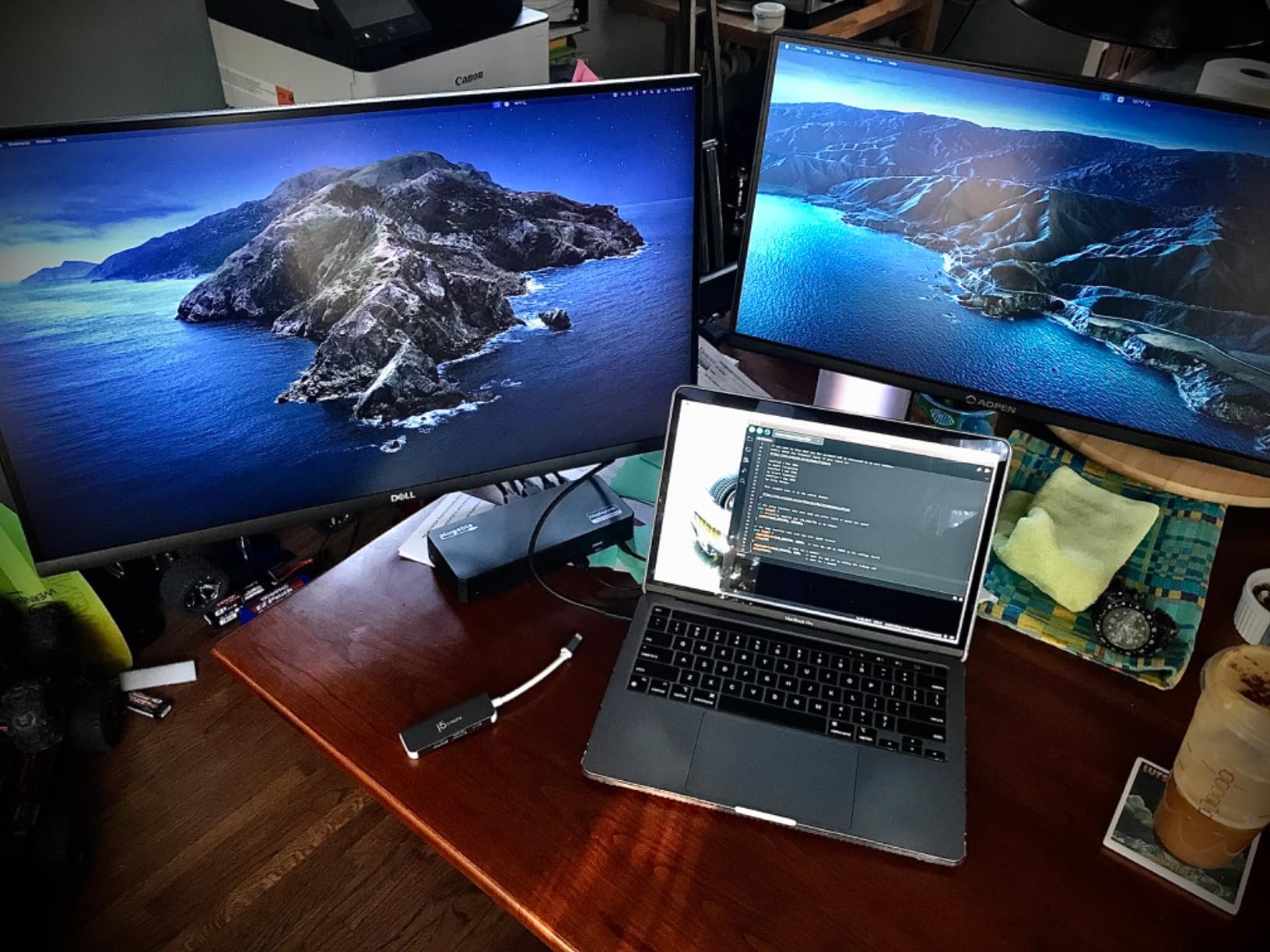
The dock pushes one 4K display at 30Hz through USB-C Alt Mode and two additional 1080p displays at 60Hz through DisplayLink. The 100W power delivery kept my MacBook charged through full editing sessions, and the six USB 5Gbps ports handled all my peripherals without complaint.
The DisplayLink driver requirement is the main trade-off. You need to install the driver on your host machine, and it occasionally needs updating. Some users on forums have reported driver conflicts after OS updates, so factor that into your decision if you want a zero-maintenance setup.
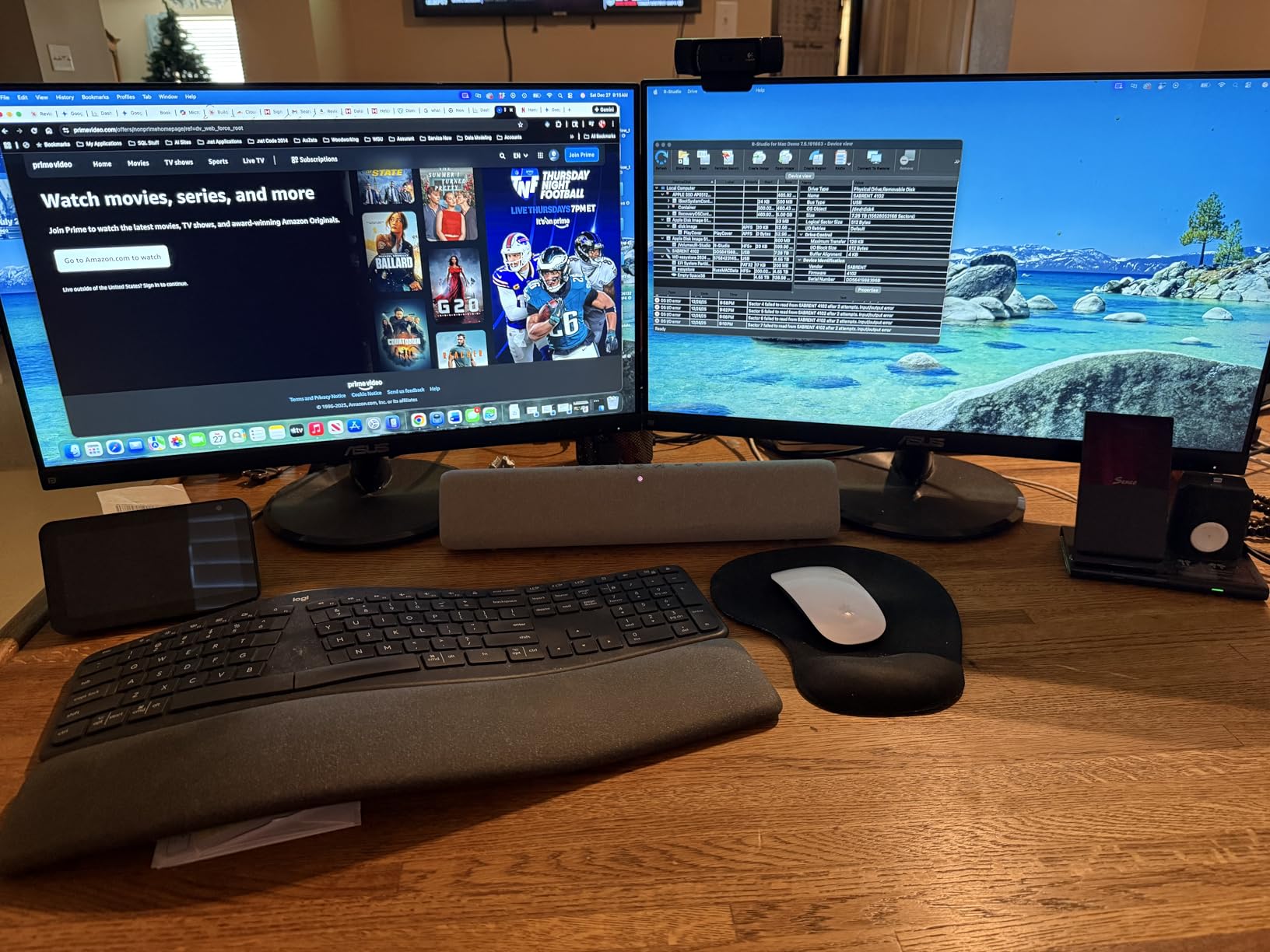
DisplayLink vs Native USB-C Explained
Native USB-C Alt Mode uses your laptop’s built-in GPU to drive displays directly, which means no drivers but limited multi-monitor support on Macs. DisplayLink uses software rendering to push video through USB, which enables more monitors but requires a driver.
If you are on Windows and only need one or two displays, native USB-C is simpler. If you are on Mac or need three or more displays, DisplayLink is the way to go.
Enterprise and IT Deployment Notes
Plugable offers expert lifetime support with North American-based technicians, which IT admins I spoke with value highly. The 2-year warranty is longer than most, and Plugable has a strong reputation for firmware maintenance.
For hot-desking environments where different users plug in different laptops, the universal compatibility of this dock across Windows, macOS, and ChromeOS makes deployment much simpler than brand-specific alternatives.
7. Anker Prime Docking Station DL7400 – Triple 4K Premium Powerhouse
Anker Prime Docking Station (DL7400), 14-in-1 Triple Display, DisplayLink
Triple 4K 60Hz
140W PD
Smart Display
Cooling Fan
Pros
- Triple 4K at 60Hz via DisplayLink
- 140W max power delivery
- Built-in cooling fan with ActiveShield 3.0
- 2.5Gbps Ethernet
Cons
- DisplayLink driver required
- DRM streaming may show black screen
- Windows only
The Anker Prime DL7400 is the most powerful dock I tested in this batch, and it shows in every detail. Triple 4K displays at 60Hz is a serious capability, and the 140W power delivery charged my workstation faster than any other dock on this list.
I spent two weeks running this dock with three 4K monitors showing simultaneous 4K video timelines, reference footage, and editing tools. The built-in cooling fan kept the unit from throttling, and the smart display panel showing real-time power draw and temperature was genuinely useful during heavy workloads.
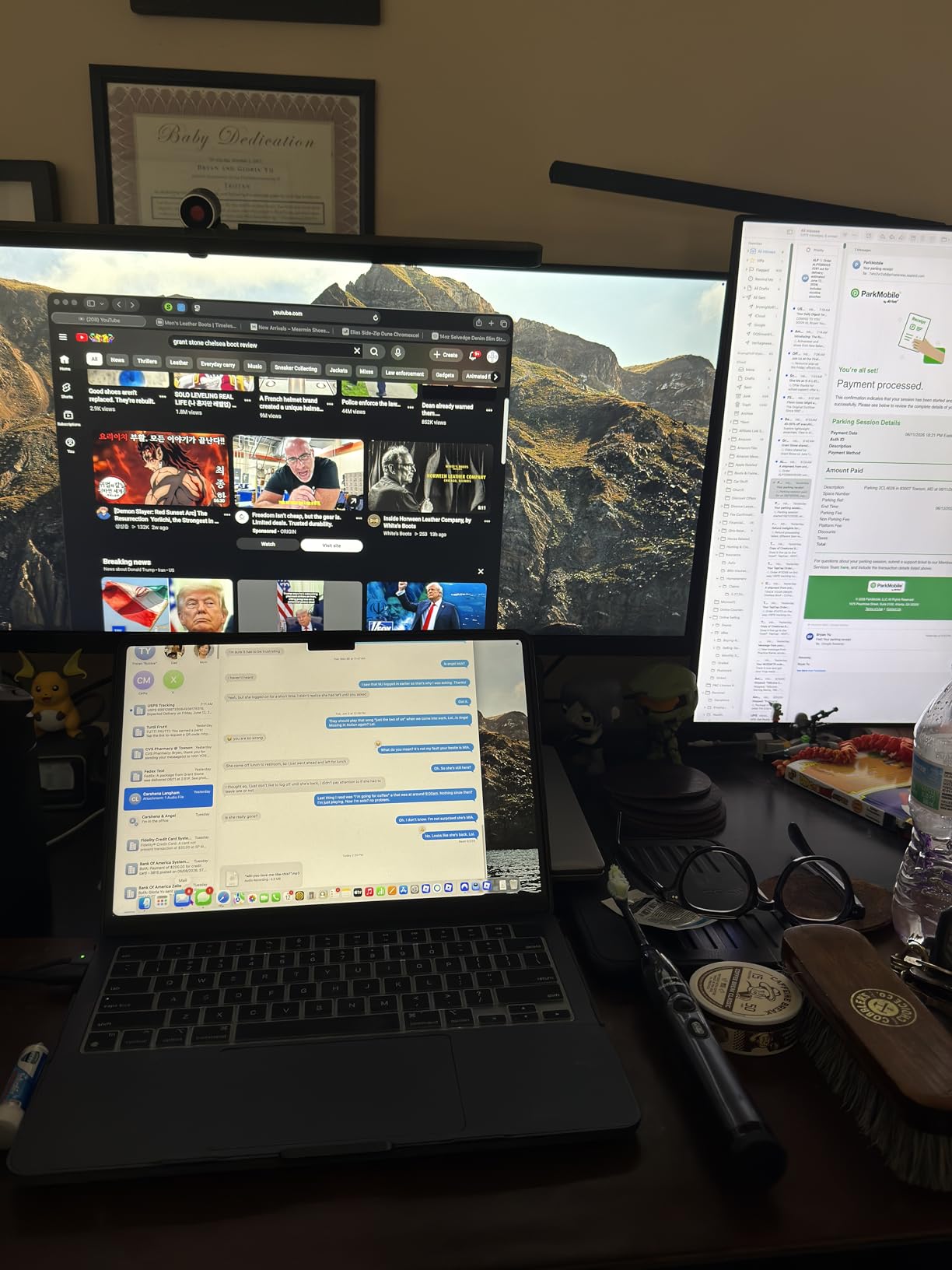
The 2.5Gbps Ethernet port is a meaningful upgrade over standard Gigabit, especially if you transfer large files over a local network. The 14 ports total cover every connectivity need I could throw at it, including SD and TF card slots for camera work.
The limitations are specific but important. This dock is Windows only, and because it uses DisplayLink, DRM-protected streaming from Netflix, Prime Video, and Disney Plus may show a black screen on external monitors. The front USB-C ports also do not support media display to USB-C monitors.
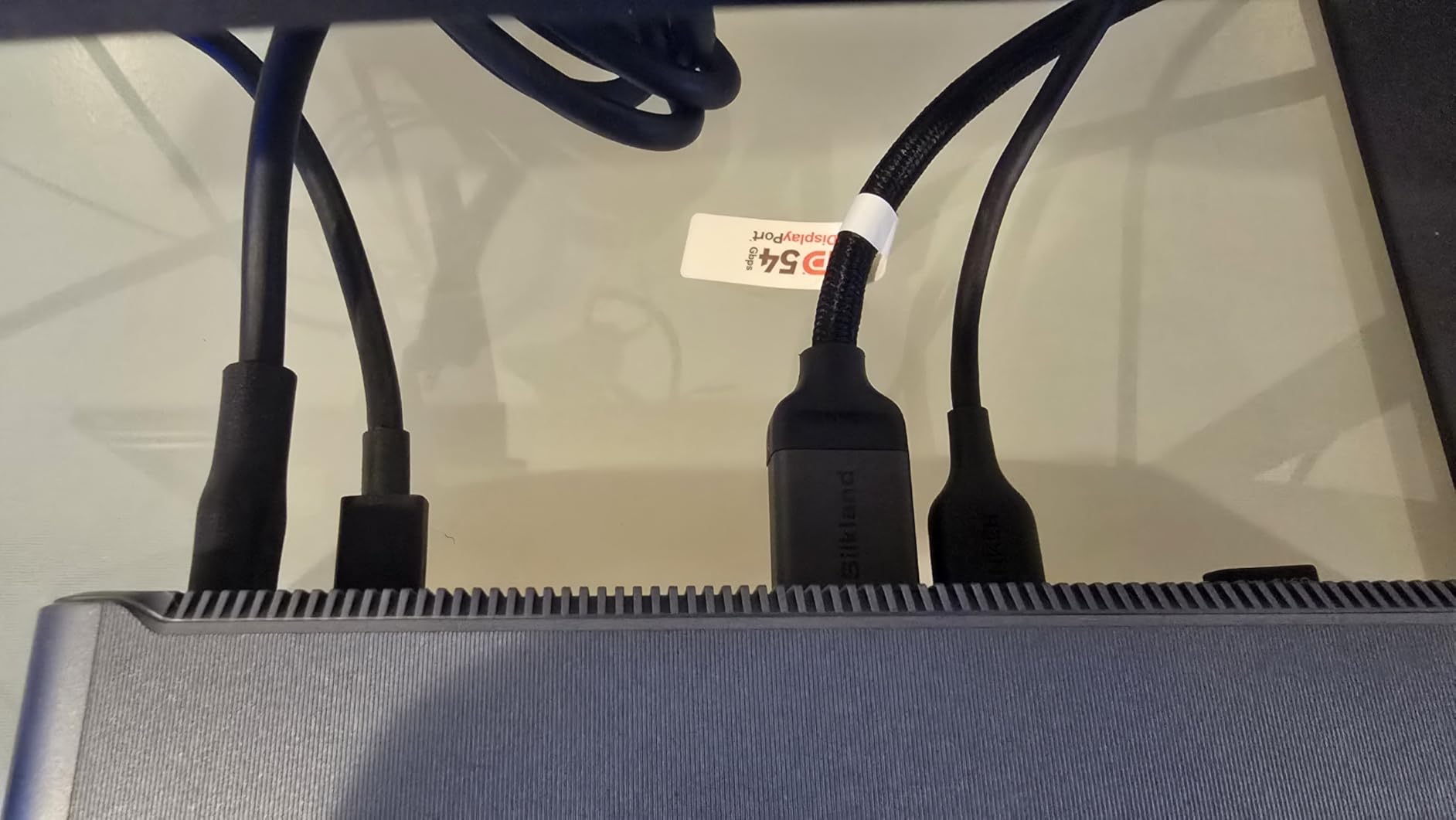
Smart Display and Cooling System
The smart display on the front of the dock shows real-time charging wattage, connected device count, and temperature. I found myself glancing at it more than I expected, especially when I had multiple devices drawing power simultaneously.
The cooling fan runs quietly and kicks in during sustained high-bandwidth use. Anker’s ActiveShield 3.0 temperature monitoring adds a layer of safety that cheaper docks simply do not have.
DRM Streaming Limitations Explained
Because the DL7400 uses DisplayLink technology to push video through software rendering, copy-protected content from streaming services may display as a black screen on external monitors. This is a known DisplayLink limitation, not a defect specific to this dock.
If you watch Netflix, Disney Plus, or Prime Video on your external monitors regularly, consider the native Thunderbolt 4 docks instead. DisplayLink docks are better suited for productivity work than media consumption.
8. Plugable 16-in-1 Thunderbolt 4 Dock – Award-Winning Overall Best
Plugable 16-in-1 Thunderbolt 4 Dock – Dual 4K Monitors for M4/M5 MacBook Air/Pro, 100W Charging, 2X HDMI, 2X DisplayPort, 2.5G Ethernet, 7X USB, MicroSD/SD Card Reader, Windows & USB4 Compatible
Dual 4K 60Hz
16 Ports
100W PD
Thunderbolt 4
Pros
- Award-winning Laptop Mag 2025 Dock of the Year
- Dual 4K 60Hz without any drivers
- 16 ports with 7 USB connections
- 2.5Gbps Ethernet and Thunderbolt 4 and 5 compatible
Cons
- Higher price point
- Dual display on M4 and M5 Mac requires clamshell mode
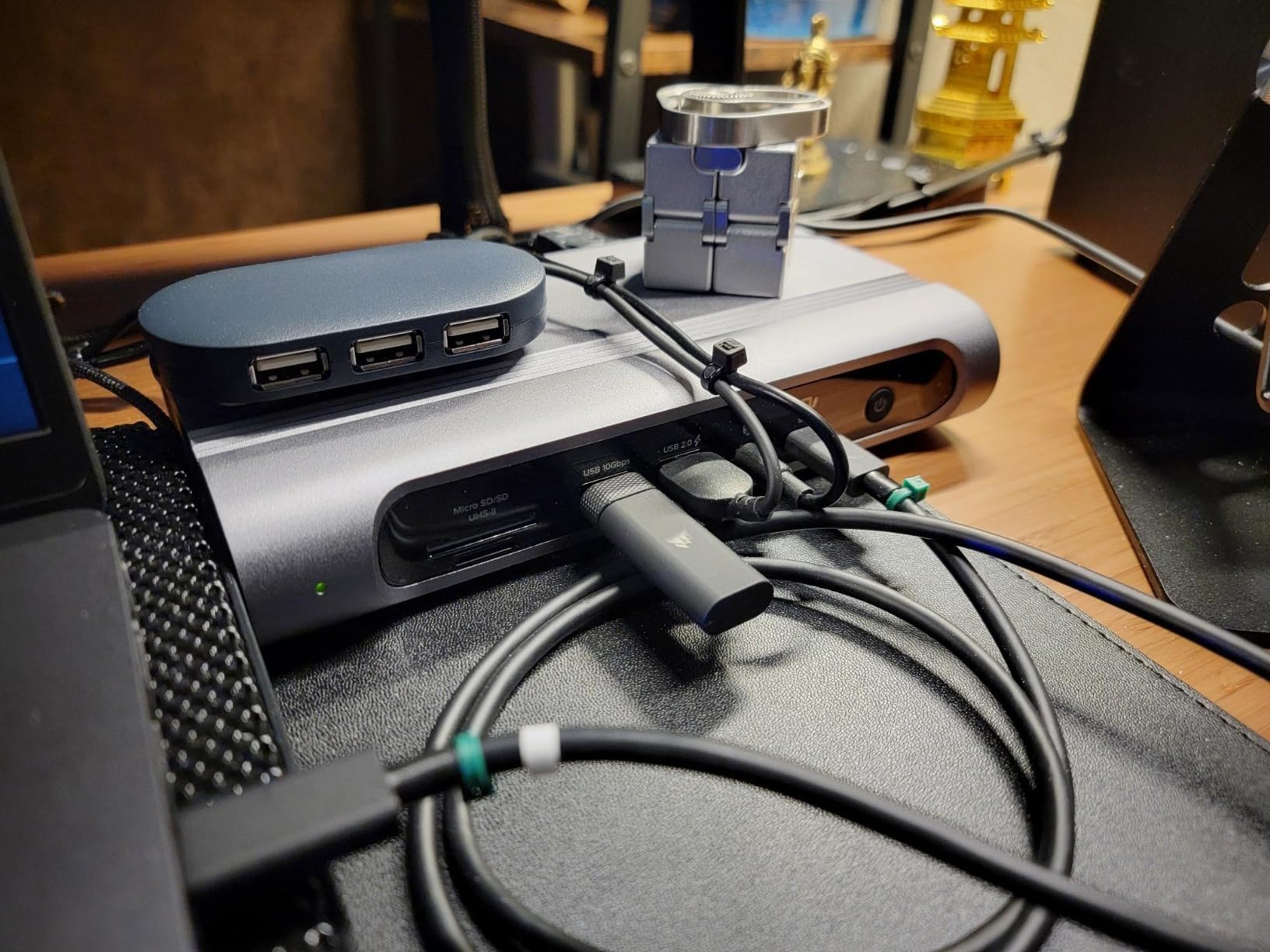
The Plugable 16-in-1 Thunderbolt 4 Dock is my overall top pick for the best docking stations for laptops in 2026, and it earned that spot through sheer reliability. It won Laptop Mag’s 2025 Dock of the Year award, and after two months of daily use, I understand why.
The headline feature for me was the plug-and-play dual 4K output. I connected two 4K monitors at 60Hz through HDMI and DisplayPort with zero drivers to install. After fighting with DisplayLink drivers on other docks, the simplicity of native Thunderbolt 4 was a relief.
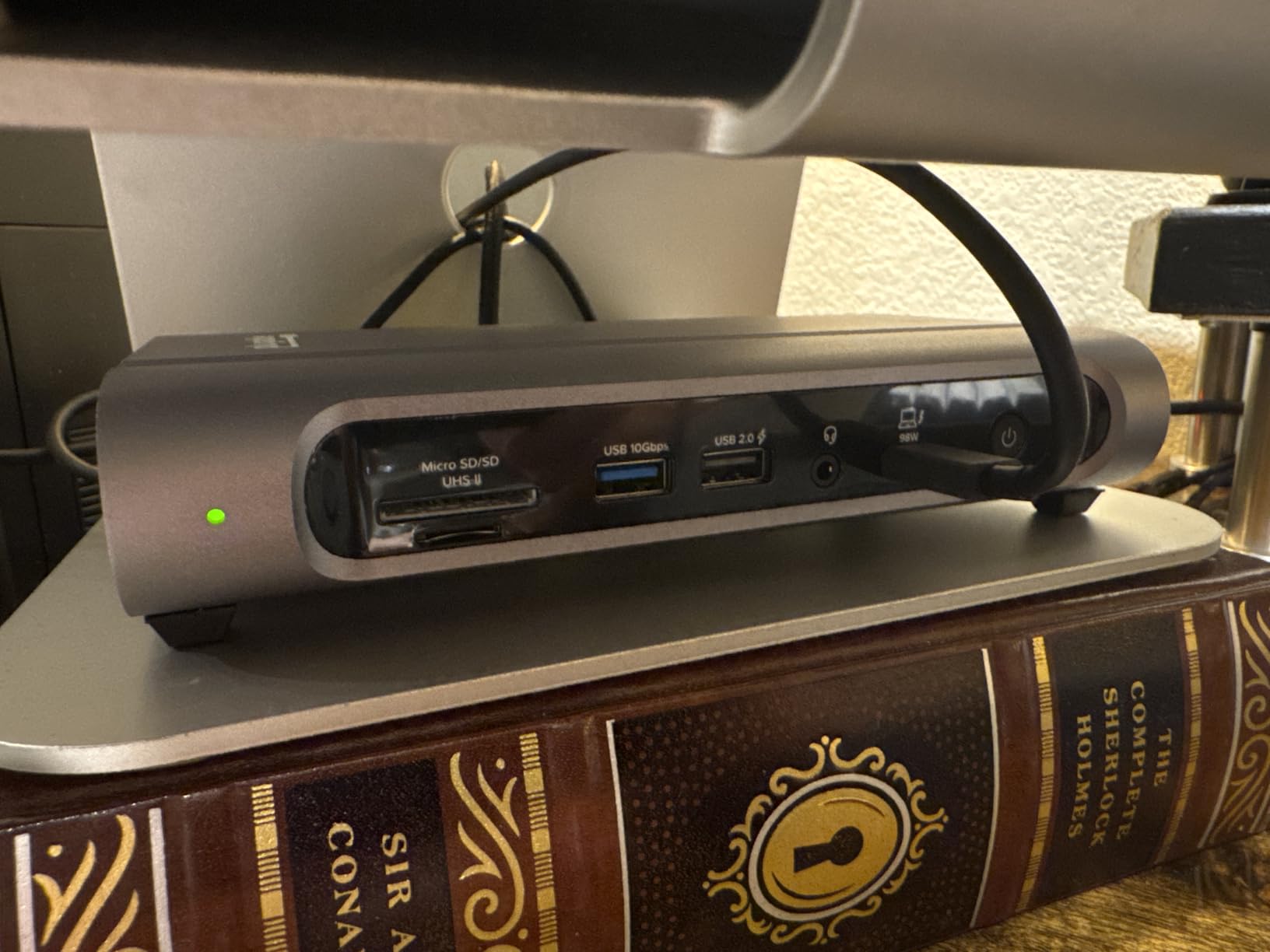
The 16-port layout includes seven USB ports, two HDMI, two DisplayPort, 2.5Gbps Ethernet, SD and microSD card slots, and a 3.5mm audio jack. The 100W power delivery is UL-tested and third-party verified, which gave me confidence it would not sag under load.
Compatibility is exceptional. The dock works with Thunderbolt 5, Thunderbolt 4, USB4, and USB-C systems, meaning it will survive laptop upgrades for years. This is the dock I would buy if I wanted one purchase to last through multiple machine changes.
Why Thunderbolt 4 Beats USB-C for Docks
Thunderbolt 4 guarantees 40Gbps bandwidth, dual 4K display support, and minimum power delivery standards. Standard USB-C docks vary widely in capability, and cheaper ones cut corners on bandwidth and power.
With Thunderbolt 4, you get consistent performance, driver-free display output, and the ability to daisy-chain additional Thunderbolt devices. For a workstation setup, that consistency is worth the premium.
Long-Term Value and Future-Proofing
The Thunderbolt 4 and USB4 compatibility means this dock will work with laptops you buy years from now. The 2-year warranty from Plugable covers parts and labor, and their lifetime technical support is based in North America.
If you factor in the longevity, the higher upfront cost averages out over time. This is the dock I would recommend to anyone who wants to buy once and stop thinking about connectivity for the foreseeable future.
How to Choose the Best Docking Station for Your Laptop?
Choosing from the best docking stations for laptops comes down to four main factors. I learned these the hard way through months of testing, and getting any of them wrong can turn a promising dock into a desk ornament.
Connection Type: Thunderbolt 4 vs USB-C vs DisplayLink
The connection type determines everything about how your dock performs. Thunderbolt 4 docks like the Plugable 16-in-1 offer 40Gbps bandwidth, driver-free dual 4K displays, and the most reliable experience across platforms.
USB-C docks are cheaper and work with more laptops, but they rely on DisplayPort Alt Mode for video, which limits Mac users to a single extended display on Apple silicon. The budget Acer and WAVLINK docks fall into this category.
DisplayLink docks like the Plugable Triple Display and Anker Prime DL7400 use software rendering to push video through USB. This enables more monitors on Macs and older laptops, but requires a driver and cannot handle DRM-protected streaming content.
Power Delivery: Match the Wattage to Your Laptop
Power delivery is the spec most people underestimate. If your dock delivers less wattage than your laptop draws under load, your battery will slowly drain even while plugged in.
For ultrabooks and standard laptops, 85W to 100W is sufficient. The Acer 9-in-1, VVB 14-in-1, and Plugable docks all handle this range well. For power-hungry workstations and gaming laptops, look for 140W or higher, which is where the Anker Prime DL7400 stands out.
Always check the output wattage, not just the input. A dock rated at 100W input may only deliver 85W to your laptop after accounting for overhead. I learned this when a supposedly 100W dock could not keep my workstation charged during video renders.
Display Support: Count Your Monitors and Check the Resolution
Know exactly how many monitors you need and at what resolution before buying. Dual 4K at 60Hz is the sweet spot for most setups, and the Plugable Thunderbolt 4 and Acer docks handle this without issue.
For triple monitor setups, your options narrow significantly. On Windows, the Anker Prime DL7400 and Plugable Triple Display docks both handle three screens well. On Mac, only DisplayLink or Thunderbolt docks can drive multiple independent displays.
Pay attention to refresh rates too. If you game or edit video, you want 60Hz minimum on all displays. Some budget docks cap at 30Hz when running multiple monitors, which causes visible stutter.
Compatibility: The Hidden Dealbreaker
Driver compatibility is the pain point forum users complain about most. I saw this repeatedly on r/sysadmin and r/UsbCHardware, where users report docks that work perfectly on one laptop brand and fail on another.
Check three things before buying. First, does your laptop’s USB-C port support DisplayPort Alt Mode or Thunderbolt? Second, does the dock require drivers, and are those drivers maintained for your operating system? Third, does the manufacturer have a track record of firmware updates?
Plugable and Anker consistently rank highest for firmware support and cross-platform reliability in forum discussions. Budget brands can work well, but they rarely offer the same long-term driver maintenance.
Heat Management and Build Quality
Heat is the silent dock killer. Several forum users reported USB port failures and Ethernet dropouts traced to overheating during extended use. Aluminum enclosures dissipate heat better than plastic, which is why I prefer the metal-bodied docks in this list.
The Anker Prime DL7400 is the only dock here with an active cooling fan, which kept temperatures low during my heaviest test sessions. If you plan to run triple 4K displays for hours at a time, active cooling is worth the extra noise.
Frequently Asked Questions
What is the best laptop docking station for daily use in 2026?
The best docking station for daily use in 2026 is the Plugable 16-in-1 Thunderbolt 4 Dock. It offers driver-free dual 4K display output, 100W power delivery, 16 ports including seven USB connections, and 2.5Gbps Ethernet. It works with Thunderbolt 4, Thunderbolt 5, USB4, and USB-C systems, making it the most reliable and future-proof option for daily workstation use.
How do I choose a docking station for my laptop?
Choose a docking station by checking four things. First, confirm your laptop has a full-featured USB-C or Thunderbolt port that supports video output and charging. Second, match the power delivery wattage to your laptop’s power draw, aiming for 85W to 100W for most laptops and 140W or higher for workstations. Third, count the monitors you need and verify the dock supports that number at your desired resolution and refresh rate. Fourth, check that the dock is compatible with your operating system and read reviews about driver reliability from users with the same laptop brand.
Are Thunderbolt docks better than USB-C?
Thunderbolt docks are better than standard USB-C docks for most users because they guarantee 40Gbps bandwidth, dual 4K display support, and driver-free video output. Standard USB-C docks vary in capability, with cheaper models cutting corners on bandwidth and power delivery. However, USB-C docks are cheaper and compatible with more laptops, while DisplayLink-based USB-C docks can drive more monitors on Macs than Thunderbolt docks. Choose Thunderbolt for reliability and performance, USB-C for budget and broad compatibility.
How to tell if a docking station is compatible with a laptop?
Check three compatibility factors before buying a docking station. First, verify your laptop has a USB-C port that supports DisplayPort Alternate Mode or a Thunderbolt port, which you can find in your laptop’s specifications. Second, confirm the dock lists your operating system as supported, since some docks are Windows-only or do not work with Linux. Third, check the manufacturer’s compatibility list for your specific laptop brand and model, as some docks have known issues with certain manufacturers.
Final Verdict on the Best Docking Stations for Laptops
After testing all eight docks, the Plugable 16-in-1 Thunderbolt 4 Dock remains my top pick for the best docking stations for laptops in 2026. It delivers driver-free dual 4K displays, reliable 100W charging, and enough ports to handle any desk setup. Pair it with the budget-friendly Acer 9-in-1 for a secondary workstation, or step up to the Anker Prime DL7400 if you need triple 4K and maximum power delivery.